
Introduction
Quickly accessing iPad features such as Wi-Fi, brightness, and audio controls can significantly enhance your user experience. The Control Center on the iPad is designed to provide a seamless way to do just that. However, many users aren’t fully aware of its benefits. This guide provides a step-by-step approach to mastering the Control Center, thus maximizing your iPad’s potential.

Understanding the iPad Control Center
The Control Center is a vital component of the iPad’s interface, offering a centralized location for key functionality shortcuts. By accessing it with swipes, users can control features like volume, screen brightness, and network settings efficiently. Incorporating the Control Center into daily use saves time and simplifies interactions with your device, making it an indispensable tool for routine tasks.
Models of iPad and Methods to Open the Control Center
Understanding how to access the Control Center varies depending on your iPad model. Apple has introduced distinct gestures based on design evolutions, affecting how users interact with the device.
iPads with a Home Button
For models with a Home button, swiping up from the screen’s bottom edge opens the Control Center. The ease of access reflects Apple’s intuitive design approach, focusing on user-friendly interactions.
iPads without a Home Button
Newer iPads without a Home button require a different approach: swiping down from the upper-right corner of the screen. This gesture leverages the edge-to-edge display, providing users with a more immersive interaction.
Switching between different methods can be challenging, especially if you frequently use multiple devices. However, mastering these gestures enhances your fluidity in navigating Apple’s ecosystem.
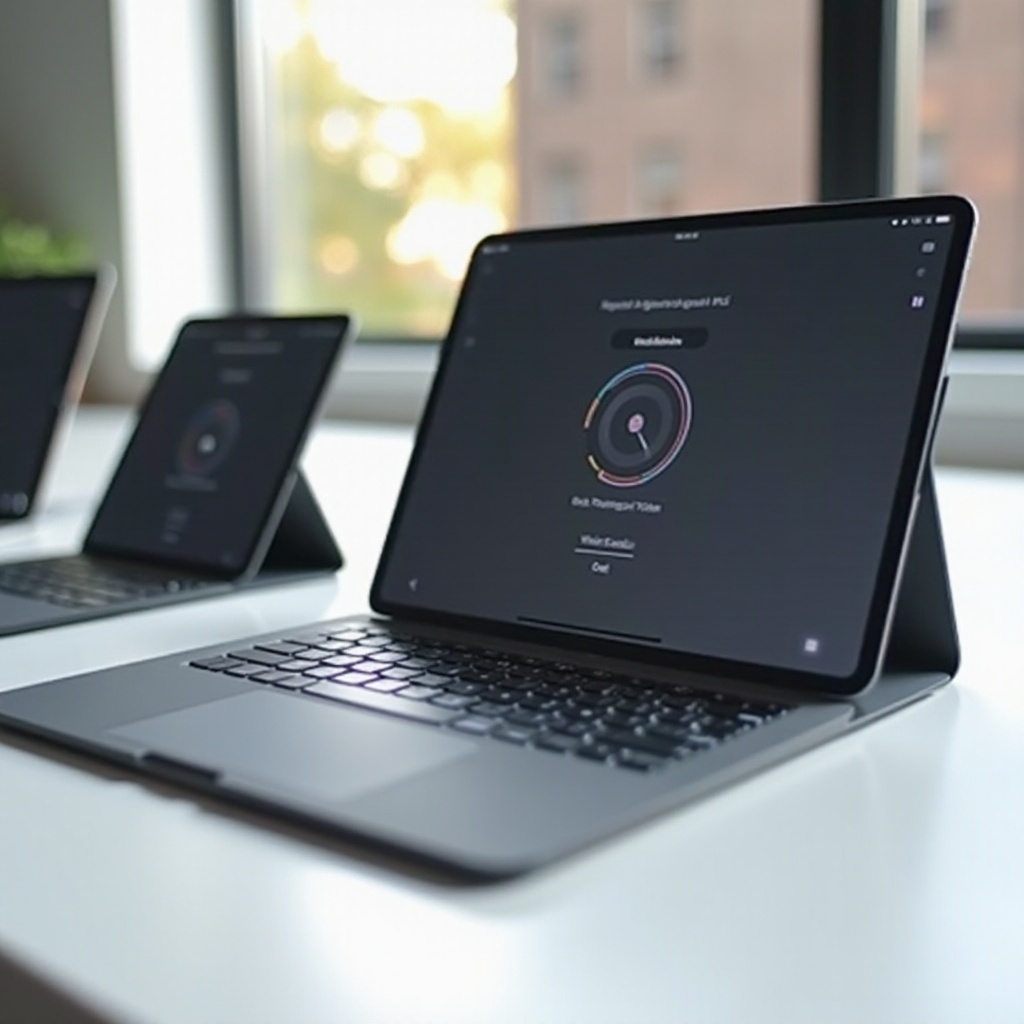
Customizing the Control Center for a Personalized Experience
Customization augments the usefulness of the Control Center. Tailoring it according to your preferences allows you to emphasize the functions you use most.
Adding and Removing Controls
Customize your Control Center by navigating to Settings > Control Center > Customize Controls. Add controls by tapping the green ‘+’ icon; remove them with the red ‘-‘ icon. This personalization ensures the most relevant tools are always within reach.
Reorganizing Controls for Efficiency
Reorder controls by entering the Control Center settings and dragging items to your preferred sequence. Streamlining the layout enhances efficiency, making interactions quicker and more intuitive.

Common Problems and Troubleshooting Tips
Navigating any tech comes with its challenges. Thankfully, most issues with the Control Center are easy to resolve.
Control Center Won’t Open
If the gestures aren’t responsive, ensure your screen is clean and restart your iPad. Persistent issues may be due to conflicting settings, so inspect multitasking settings and ensure they aren’t interfering.
Controls Not Working Properly
For non-responsive controls, ensure your software is up-to-date. Double-check relevant settings for each control and, if necessary, perform a settings reset—always back up your data first.
Understanding navigation challenges and their solutions ensures a seamless experience, reinforcing the Control Center as a cornerstone of iPad functionality.
Enhancing Accessibility Through the Control Center
The Control Center supports accessibility features that cater to users with different needs. Options like VoiceOver and AssistiveTouch can be activated for easier navigation, accommodating those with disabilities. Modifying screen reader settings or enlarging text can also redefine the user experience, making the iPad more accessible to every individual.
Conclusion
Incorporating the Control Center into your daily iPad interactions refines productivity and user satisfaction. This guide empowers you to access, customize, and troubleshoot the Control Center, ensuring your device serves you with unparalleled efficiency. Utilize this feature to streamline your tasks and embrace the full potential of your iPad.
Frequently Asked Questions
How do I customize controls in the Control Center?
Access customization through Settings > Control Center > Customize Controls, where you can add or remove items.
Can I access the Control Center while in an app?
Yes, by swiping down from the top right on newer iPads or swiping up from the bottom on models with a home button.
Why can’t I open the Control Center on my iPad?
There might be software issues, gestures interference, or multitasking settings that need checking. Restarting your device often helps.