
Introduction
The iPhone Sleep/Wake button might seem minor, but it’s essential for your device’s functionality, playing key roles in managing power and interacting with your phone. Located on the side or top of various iPhone models, this button offers multiple features beyond its primary purpose. By grasping its full capabilities, you’ll enhance your iPhone usage and tackle any potential problems.
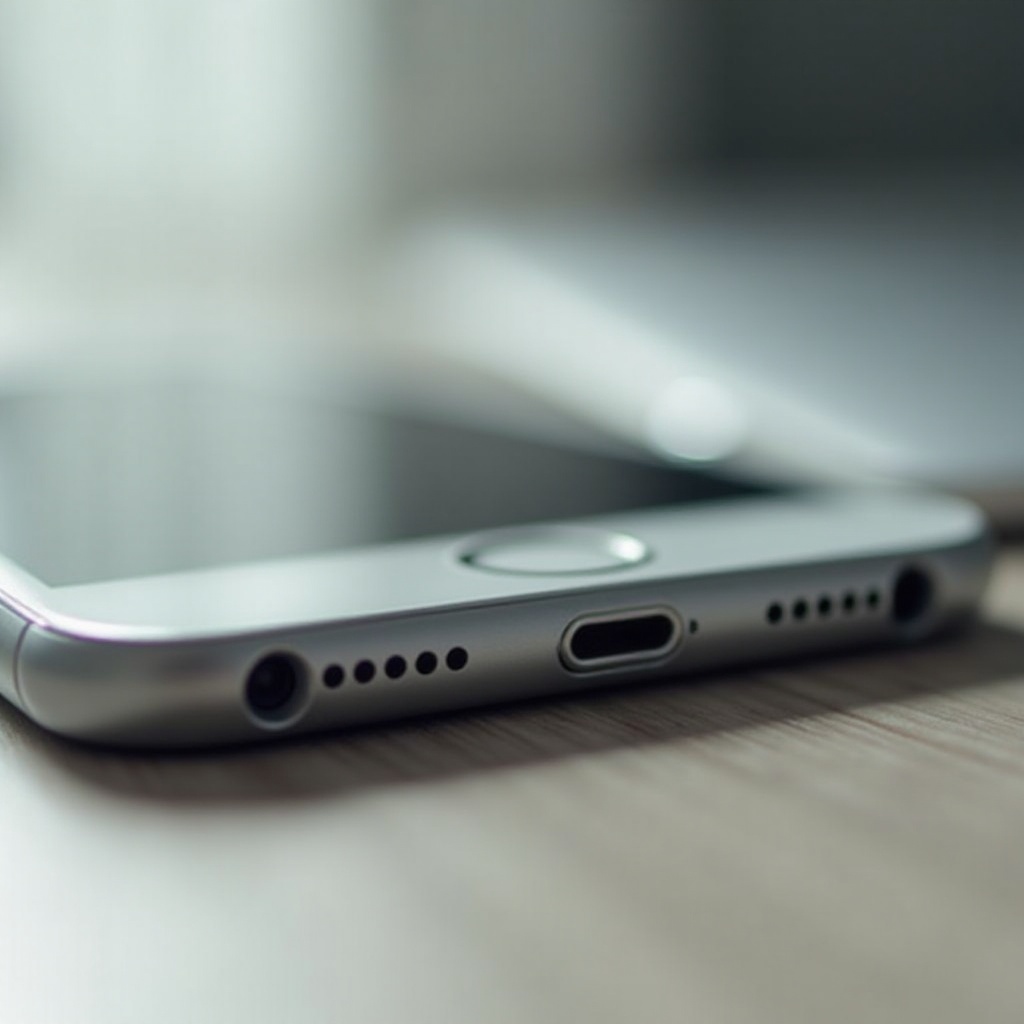
Overview of the iPhone Sleep/Wake Button
The Sleep/Wake button is more than just a power manager; it’s a gateway to several functions you might not know about.
Definition and Location on iPhone Models
The Sleep/Wake button’s location varies by model. On Face ID phones, you’ll find it on the right side; for models with a Home button, it’s on the top edge. This placement ensures easy access regardless of your iPhone version.
Basic Functions of the Button
At its core, the Sleep/Wake button manages your screen. A single press wakes the screen, while another press locks it, safeguarding your device and saving battery. For full power control, hold the button down until the Apple logo appears, and you can likewise shut down your phone.
How to Use the Sleep/Wake Button Effectively
While basic operations are necessary, knowing advanced functions makes your iPhone experience smoother and more productive.
Powering Your iPhone On/Off and Locking/Unlocking
To power on, press and hold until you see the Apple logo. To turn off, press the Sleep/Wake and volume down buttons together and slide. Quickly lock or unlock with a single press of the button.
Accessing Siri and Other Quick Actions
Holding the Sleep/Wake button for a few seconds summons Siri, your digital assistant for making calls, sending texts, or setting reminders. This function offers rapid access to many essential services at your command.
Using the Button for Screenshots and Emergency SOS
For screenshots, simultaneously press the Sleep/Wake and volume up buttons. In emergencies, activate the Emergency SOS by pressing the Sleep/Wake button five times quickly, alerting services and sending your location.
Troubleshooting Common Issues with the Sleep/Wake Button
Problems with the Sleep/Wake button can impede your iPhone use. Identifying and fixing these issues ensures smooth operation.
Identifying Symptoms of a Faulty Button
A faulty button may feel stuck or unresponsive or require extra pressure. These issues necessitate prompt attention to prevent worsening.
DIY Fixes and Solutions
- Soft Reset: Restart by holding the Sleep/Wake and volume down buttons until the Apple logo shows.
- Software Update: Ensure your iOS is up-to-date to resolve button issues.
- Physical Inspection: Remove any dirt or debris with a gentle cloth around the button area.
When to Seek Professional Help
Persistent problems may need professional repair. Visit authorized Apple service providers for comprehensive diagnostics and repair solutions.
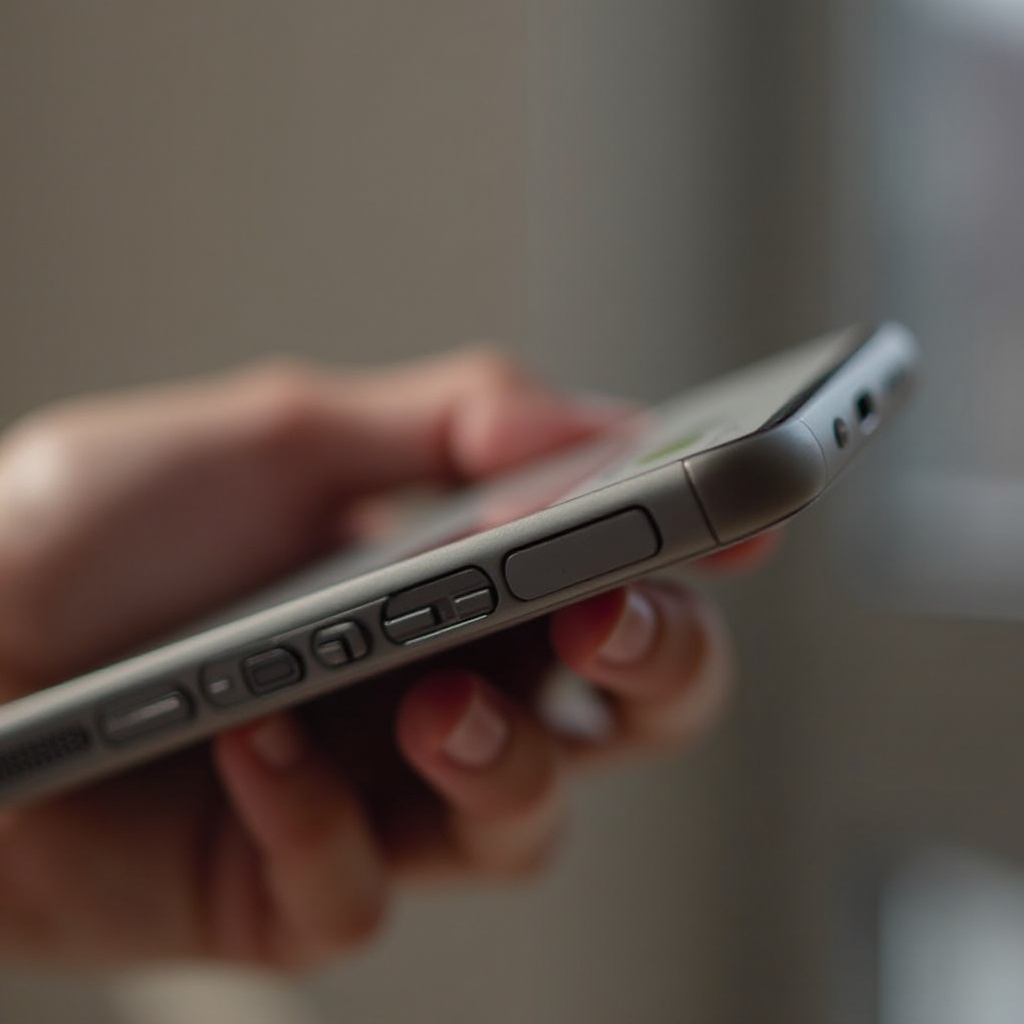
Tips for Maintaining Sleep/Wake Button Functionality
Simple care practices can preserve button longevity and functionality, ensuring it works perfectly for years to come.
Cleaning and Maintenance Best Practices
Regularly clean your iPhone to avoid dirt accumulation. Use a soft, slightly damp cloth to keep both the phone and button clean.
Protecting Your Button with Cases and Accessories
Using protective cases shields the button from dust and impact, prolonging its operational life and preventing damage.
Conclusion
The iPhone Sleep/Wake button serves multiple essential purposes beyond powering the device. By exploring its full functionality and addressing any operational issues with the provided tips, you maintain an optimal iPhone experience, ensuring your device’s longevity and reliability.
Frequently Asked Questions
How can I fix an unresponsive Sleep/Wake button?
Inspect for debris, perform a software update, and if needed, contact Apple support for more assistance.
Can I customize the functionality of my Sleep/Wake button?
Core functions remain the same, but you can adjust Siri shortcuts and accessibility options in your iPhone settings.
What should I do if my button is physically damaged?
Seek repairs through official Apple services to ensure the best possible outcome.